Memes with a punchline
Put the setup at the top and the payoff at the bottom, and let the clip carry the rest.
Captions turn a moving clip into a joke, a label or a step in a tutorial. You can add up to five lines of text, each with its own colour and size, and drag each one anywhere on the preview. The preview mirrors the export, so what you see is where the words will be.
Every caption is drawn with a dark outline so it stays readable on bright and busy footage alike. White text with the default outline works almost everywhere; choose a colour only when it carries meaning.
Text is baked into the frames of the finished file, so it can't be edited afterwards. Keep the original so you can change the wording later.
Drop a video or GIF in, or choose a few pictures.
Press Add caption and type your text. It appears on the preview straight away.
Drag the text into position and adjust size and colour. Add more lines if you need them.
Export and check the result. The text is drawn on every frame.
Treat these as a first try, not a rule. The size estimate tells you quickly whether to nudge them up or down.
| If you're making | Try | Why it works |
|---|---|---|
| Meme or reaction | Two captions · white · size around 10% | The familiar top-and-bottom layout. |
| Tutorial step label | One caption · bottom · medium size | Describes what's happening without hiding it. |
| Watermark-style credit | Small caption in a corner | Unobtrusive attribution. |
| Title card | Large centred caption | Opens a loop with a headline. |
Put the setup at the top and the payoff at the bottom, and let the clip carry the rest.
A short caption such as "Click Save" saves a paragraph of instructions.
Open a loop with a headline, or put your name in a corner so the GIF travels with its source.
The server needs a font installed to draw text. If you run your own copy, set the FONT_FILE option.
Increase the size, move it away from busy areas, or switch to white.
Shorten it or reduce the size. Long text is limited to 80 characters and one line.
A single bold sans-serif font is used for consistency between the preview and the export.
These are real screenshots from this site, taken with a demo clip. Your own file will give different sizes, but the controls are exactly these.
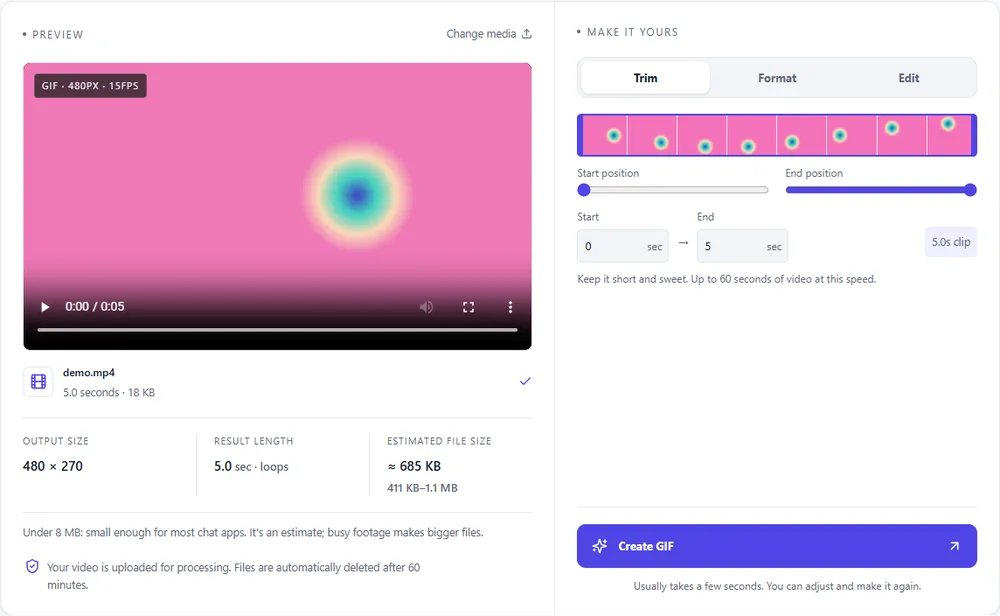
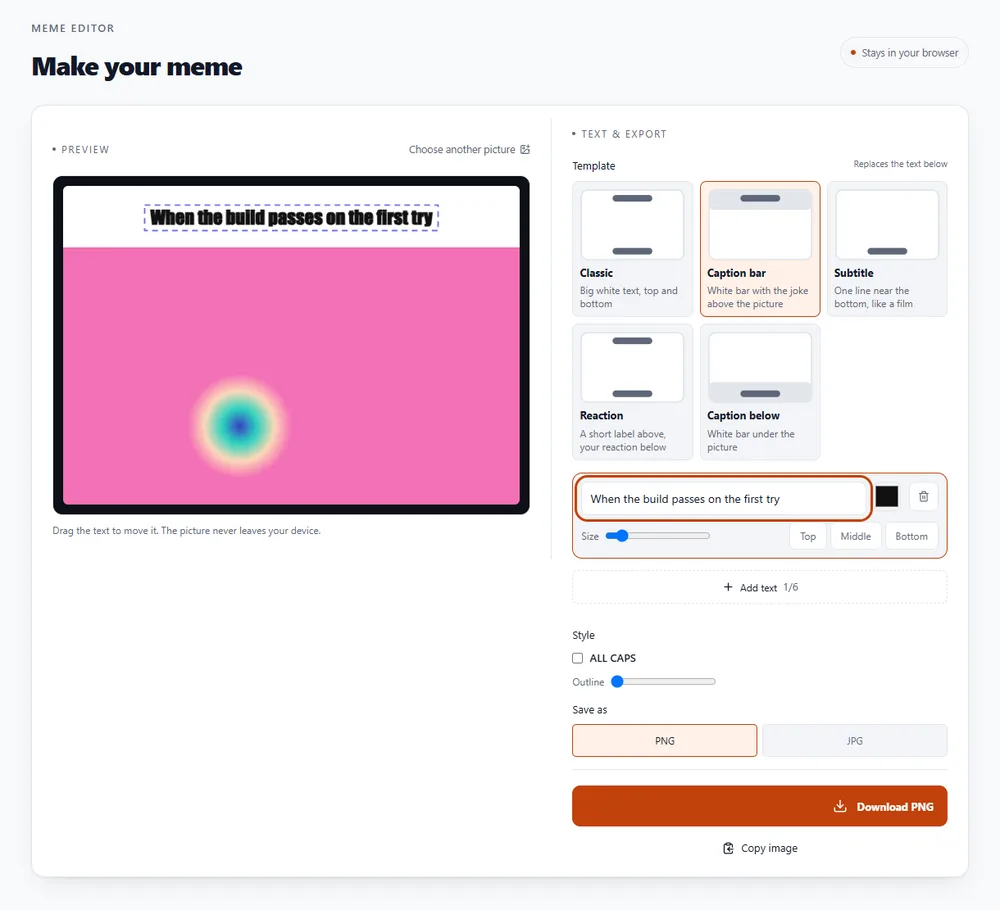
Captions work in every output format. These notes cover which one suits a text-heavy clip.
| Format | For this clip | Typical size | Good to know |
|---|---|---|---|
| GIFSuggested | Text with an outline stays crisp, and the format plays everywhere. | Largest | 256 colours, up to 720px and 20fps |
| WebP | Keeps text and colours sharper than a GIF, with a smaller file. | About 5× smaller | Full colour, animated, loops |
| MP4 | Smallest, with clean text, if the destination plays video. | About 15× smaller | Up to 1080px and 30fps, no loop flag |
| APNG | Pixel-perfect text, at the cost of file size. | Larger than GIF | Lossless, full colour, loops |
Can’t find yours? The converter explains problems in plain language as they come up.
Up to five, each up to 80 characters on one line.
Yes. Drag it on the preview, or use the controls in the Edit tab to change size and colour.
Yes. Captions last for the whole clip.
Not currently. A bold sans-serif is used so the preview matches the export.
Yes. Choose MP4 as the output format.
It's free, there's nothing to sign up for, and your files are gone within the hour.