Showing a long process in a few seconds
Speed a screen recording up to 3× or 4× and a four-minute setup becomes a loop people actually watch.
Too fast to follow, or too slow to be funny? Drop in a GIF or a video, pick a speed anywhere from a quarter to four times normal, and see how long and how big the result will be before you make it.
A GIF is a stack of pictures with a timer on each one. To make it faster, the pictures have to go by quicker. To make it slower, they have to hang around longer. That sounds simple, and it mostly is, but there's one thing worth knowing before you start: speed and smoothness aren't the same thing.
Speeding up is the easy direction. A 2× version of a 10-second clip is a 5-second clip with every other moment skipped, and because less is happening per second the file gets smaller too. Slowing down is harder. You can't invent pictures that were never taken, so a slowed-down GIF mostly shows the same frames for longer. At 0.5× that's usually fine. At 0.25× you'll see it step from one picture to the next.
If you want slow motion that looks properly smooth, start from a video rather than a GIF. Most phones film at 30 or 60 frames a second, and a 60fps clip has plenty of in-between moments to stretch out. A GIF has usually thrown most of them away already.
Drop it in, press Ctrl+V, or paste a link. A GIF is read frame by frame, so it keeps its own timing.
Speed changes are easier to judge on a short clip. Cut it down to the moment you want to speed up or stretch.
Choose anything from 0.25× to 4×. The length and the size estimate change as soon as you click.
Convert, watch it once, and if it feels off, go back one step on the speed and run it again.
Treat these as a first try, not a rule. The size estimate tells you quickly whether to nudge them up or down.
| If you're making | Try | Why it works |
|---|---|---|
| Fast screen recording | 3× · 720px · 10fps | Interfaces barely move between frames, so a low frame rate loses nothing and the file stays small. |
| Slow-motion reaction | 0.5× · 480px · 15fps · crop in on the face | Half speed adds drama without the stepping you get at a quarter. |
| Timelapse feel | 4× · 480px · 15fps | Clouds, queues and progress bars read well when they run fast. |
| Fixing a GIF that's too hurried | 0.75× · same width as the original | A small slowdown is often enough, and it barely changes the size. |
| Dramatic freeze-and-stretch | 0.25× · short selection · WebP | WebP keeps a stretched clip from ballooning the way a GIF does. |
Speed a screen recording up to 3× or 4× and a four-minute setup becomes a loop people actually watch.
Some GIFs are just a beat too quick. Dropping to 0.75× gives the punchline room without making it feel slow.
A catch, a splash, a hat blowing off. Half speed turns a blink into something you can enjoy twice.
That's the frames running out, not a bug. Try 0.5× instead of 0.25×, or start from a video that has more frames to stretch.
Results can be up to 60 seconds. A 20-second selection at 0.25× would be 80, so shorten it or pick a faster speed.
A longer clip is a bigger file, even if the extra frames are repeats. Trim the clip, drop the width one step, or export WebP.
The start and end don't match. Trim so it ends where it began, or switch Direction to Boomerang.
The preview shows your clip at its original pace. The speed is applied when you create the file, so check the result.
These are real screenshots from this site, taken with a demo clip. Your own file will give different sizes, but the controls are exactly these.
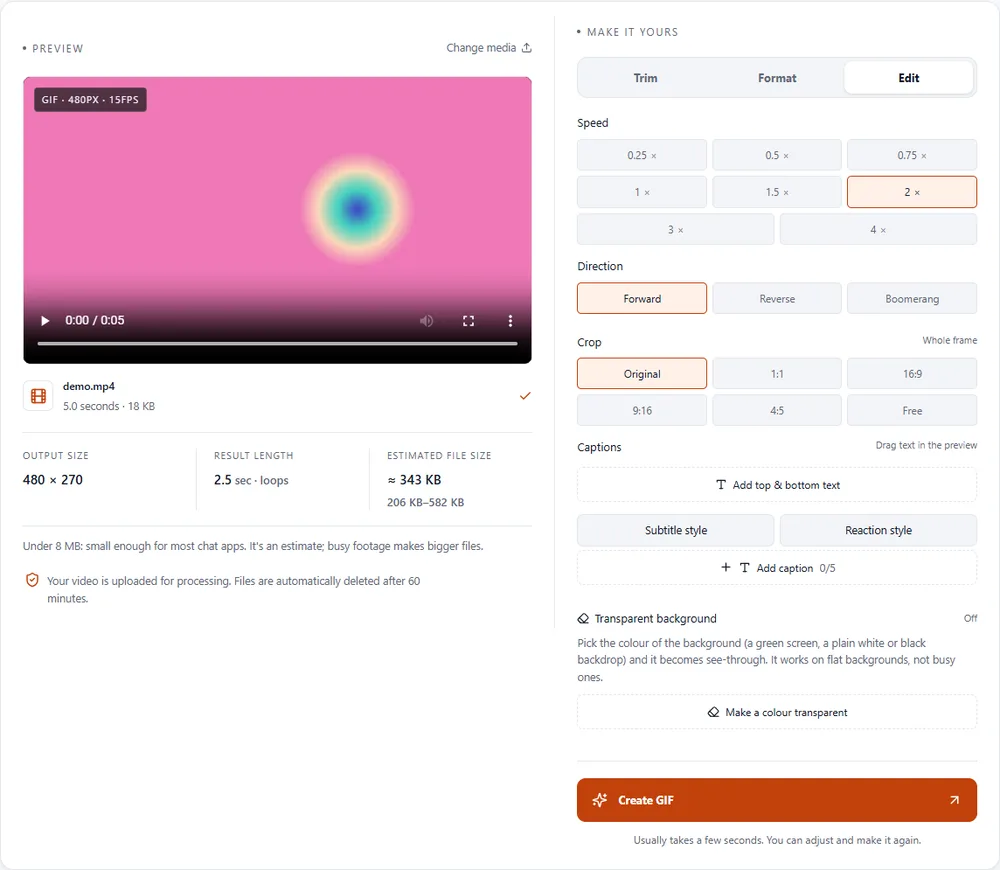
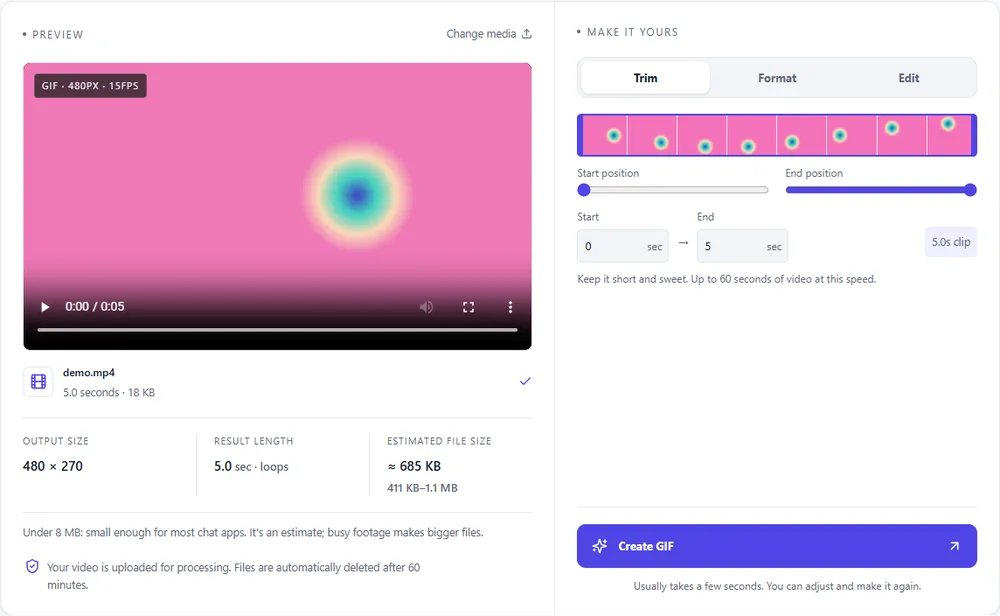
Slowing a clip down makes it longer, so the format you export to matters more than usual.
| Format | For this clip | Typical size | Good to know |
|---|---|---|---|
| WebPSuggested | Keeps a slowed clip small, in full colour, and loops without any help. The best choice for slow motion. | About 5× smaller | Full colour, animated, loops |
| GIF | Fine for fast clips and short slow-downs. A stretched clip gets large quickly, so keep it brief. | Largest | 256 colours, up to 720px and 20fps |
| MP4 | Smallest and smoothest at 24 or 30fps, but it won't loop by itself. | About 15× smaller | Up to 1080px and 30fps, no loop flag |
| APNG | Lossless, which is lovely for crisp graphics and expensive for anything long. | Larger than GIF | Lossless, full colour, loops |
Can’t find yours? The converter explains problems in plain language as they come up.
Add the GIF, open the Edit tab and choose 1.5×, 2×, 3× or 4×. The result length and size update straight away, then press Create GIF.
Pick 0.75×, 0.5× or 0.25× on the Edit tab. Slower speeds make a longer file, and below 0.5× a GIF can look steppy because it has only so many pictures to show.
0.25×, 0.5×, 0.75×, 1×, 1.5×, 2×, 3× and 4×. The finished clip can be up to 60 seconds long.
Yes. MP4, MOV and WebM work the same way, and a video with a high frame rate gives you the smoothest slow motion.
Yes, Loop forever is on by default. Turn it off in the Format tab if you want it to play once.
It's free, there's no sign-up and nothing is added to your GIF. Files are deleted automatically after an hour.
It's free, there's nothing to sign up for, and your files are gone within the hour.