Before and after
Two photos, a second each, looping. It's the clearest way to show a redesign, a repair or a haircut.
Make an animated GIF from a handful of pictures. Put them in order, choose how long each one stays on screen, and add captions or a boomerang effect.
An animated GIF is just a list of pictures shown one after another, so a few photos or screenshots are all you need. It's a handy way to show a before-and-after, a step-by-step sequence, a product from several angles, or a small flip-book.
Choose two or more PNG, JPEG or WebP pictures. Drag them into the order you want, remove the ones you don't, and set how long each is shown, from a quick 0.2 seconds up to two seconds. The pictures don't have to be the same size: they're fitted inside the frame of the first one, with plain bars filling any gap, so start with the picture whose shape you want.
Because every picture is a full frame, slideshow GIFs can be large if the pictures are detailed. Keep the width modest and watch the estimate, or export WebP for a much smaller file with the same effect.
Select two or more PNG, JPEG or WebP files at once, or drag them in. You can add up to 60.
Reorder the pictures and choose how many seconds each is shown.
Crop to a shape, add a caption, or try Boomerang for a back-and-forth effect.
Check the estimated size and press Create GIF. Download it when it finishes.
Treat these as a first try, not a rule. The size estimate tells you quickly whether to nudge them up or down.
| If you're making | Try | Why it works |
|---|---|---|
| Before and after | 2 pictures · 1 second each · 480px | Simple, clear and small. |
| Step-by-step guide | 4 to 8 screenshots · 1 second each · 720px | Readable text for each step. |
| Product from several angles | 5 photos · 0.5 seconds each · Boomerang | Looks like a smooth turntable. |
| Flip-book animation | 10+ drawings · 0.2 seconds each | Fast enough to read as motion. |
Two photos, a second each, looping. It's the clearest way to show a redesign, a repair or a haircut.
Turn six screenshots into one GIF that steps through a setup guide, so readers don't have to scroll through images.
Photograph or export your frames, set 0.2 seconds each, and watch them come alive.
A slideshow needs two or more. With one picture there is nothing to animate.
They have a different shape from the first picture. Reorder so the one with the right shape is first, or crop them to match.
Lower the width, use Smallest quality, or switch to WebP, which is many times smaller.
Only PNG, JPEG and WebP pictures up to 4096px are accepted. Convert other formats first.
These are real screenshots from this site, taken with a demo clip. Your own file will give different sizes, but the controls are exactly these.
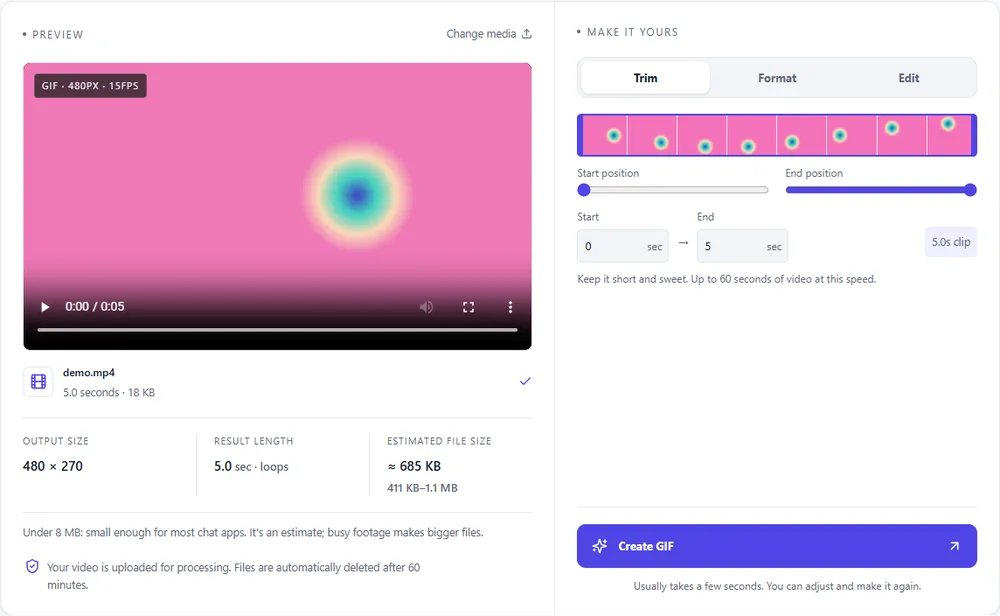
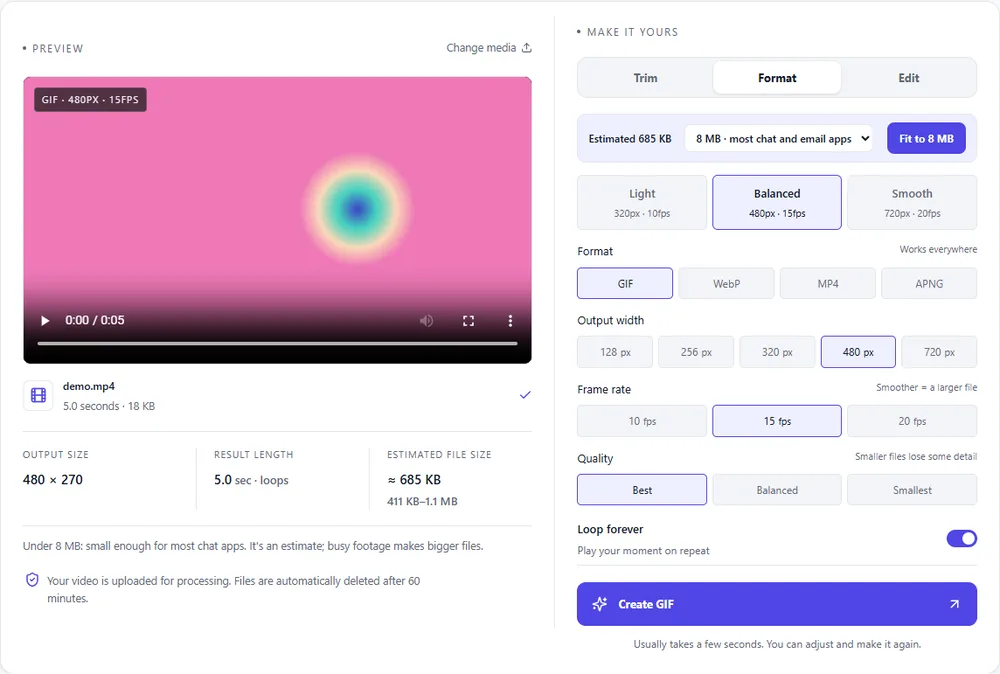
Slideshows are made of full pictures, so the format you choose changes the size more than usual.
| Format | For this clip | Typical size | Good to know |
|---|---|---|---|
| GIFSuggested | The default, and it plays everywhere. Detailed photos make large GIFs, so keep the width modest. | Largest | 256 colours, up to 720px and 20fps |
| WebP | Much smaller for photos, with full colour, and it loops by itself. | About 5× smaller | Full colour, animated, loops |
| MP4 | The smallest of all, but it needs a player to loop it. | About 15× smaller | Up to 1080px and 30fps, no loop flag |
| APNG | Lossless, which suits screenshots and drawings, but heavy for photos. | Larger than GIF | Lossless, full colour, loops |
Can’t find yours? The converter explains problems in plain language as they come up.
Choose two or more pictures, set the order and how long each shows, and press Create GIF.
Up to 60, as long as together they are under 100 MB.
PNG, JPEG and WebP, up to 4096px on the longest side.
Yes. Open the Edit tab and add up to five captions.
Yes, by default. Turn off Loop forever to play it once.
It's free, there's nothing to sign up for, and your files are gone within the hour.