A GIF that's too wide for its spot
Match the width to the column it lives in, so the browser isn't shrinking it after you've already paid for the pixels.
Change a GIF's width without squashing it. Pick a size, crop it to a different shape if you need to, and check the file size before you convert.
Resizing a GIF means redrawing every frame at the new size and building a fresh colour palette. That's why a quick resize in a generic image tool so often comes out smeary or speckled. Here the proportions always stay put, and the palette gets rebuilt for the new size.
Making it smaller is easy, and you get a smaller file out of it too. Making it bigger is another story. A GIF has no hidden detail waiting to be revealed, so blowing it up just makes the same pixels larger, and the file grows. If you need a bigger version, go back to the original video if you've still got it.
If what you really want is a different shape rather than a different size, use the crop presets: 1:1 for a feed, 16:9 for something wide, 9:16 for a story, 4:5 for portrait posts.
Drop it in or paste it.
In the Format tab, choose 320, 480 or 720px. The preview and the size estimate update straight away.
In the Edit tab, pick a ratio and drag the frame over the part you want to keep.
Download the resized GIF. Need something wider than 720px? That's a job for WebP or MP4.
Treat these as a first try, not a rule. The size estimate tells you quickly whether to nudge them up or down.
| If you're making | Try | Why it works |
|---|---|---|
| Chat or sticker size | 320px · 10fps | Small and quick to load. |
| Blog or documentation | 480px · 15fps | Easy to read and still light. |
| Detailed screen capture | 720px · 10fps · crop to the area | Sharp text without a huge file. |
| Square for a feed | Crop 1:1 · 480px | Fills the post with no borders. |
Match the width to the column it lives in, so the browser isn't shrinking it after you've already paid for the pixels.
320px is plenty for a small reaction in chat or a little animation next to a button.
Crop it to 1:1 for a feed, 9:16 for a story or 16:9 for a banner, then choose the width.
Make sure you're not making it bigger. Use Best quality and keep the width at or below the original.
GIF tops out at 720px here. Export WebP or MP4 if you need 1080px.
They're always kept. If the shape isn't right, that's what the crop presets are for.
Going wider means more pixels. Go smaller, or lower the frame rate.
These are real screenshots from this site, taken with a demo clip. Your own file will give different sizes, but the controls are exactly these.
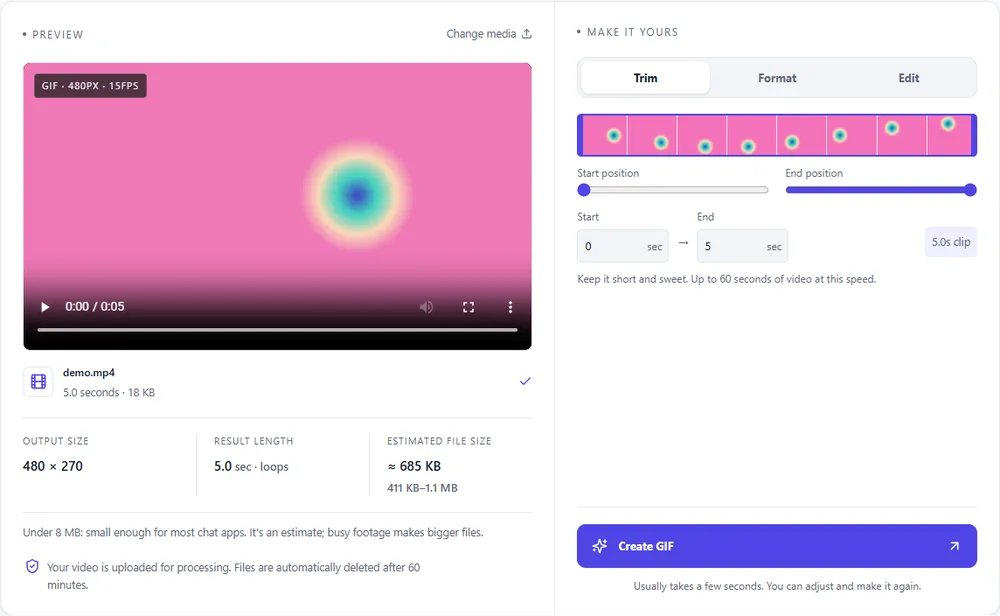
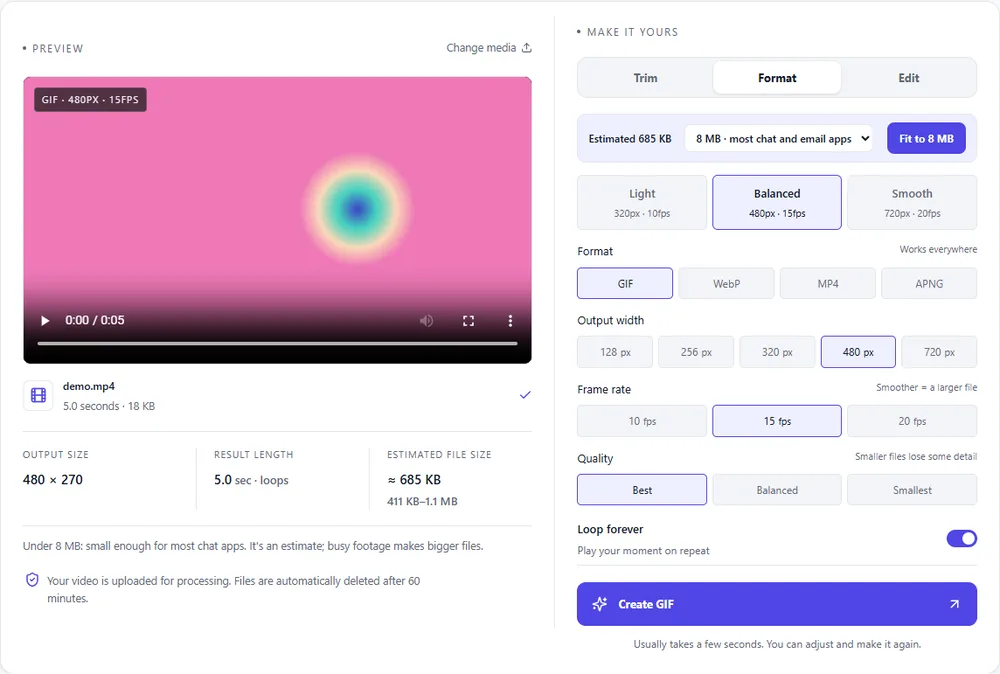
Most resizes stay as GIF, but the other formats give you bigger sizes and smaller files.
| Format | For this clip | Typical size | Good to know |
|---|---|---|---|
| GIFSuggested | Stays a GIF, up to 720px wide. The right pick if it has to play everywhere. | Largest | 256 colours, up to 720px and 20fps |
| WebP | Goes up to 1080px and comes out much smaller. Just check that wherever it's going supports it. | About 5× smaller | Full colour, animated, loops |
| MP4 | Also up to 1080px, and the smallest option. It needs a player to loop it, though. | About 15× smaller | Up to 1080px and 30fps, no loop flag |
| APNG | Lossless at any size, but heavier than the rest. | Larger than GIF | Lossless, full colour, loops |
Can’t find yours? The converter explains problems in plain language as they come up.
Always. If you want a different shape, use a crop preset or crop it freely.
GIFs can be 320, 480 or 720px wide. WebP, MP4 and APNG can also go to 1080px.
You can, but it won't get any sharper and the file will grow. If you have the original video, start from that instead.
Yes, as long as Loop forever is on, which it is by default.
Sure. Pick a smaller width and a lower frame rate or quality, and keep an eye on the estimate.
It's free, there's nothing to sign up for, and your files are gone within the hour.