Chat apps with upload caps
Lots of free plans stop at around 8 to 10 MB. A GIF that already fits means the app won't mangle it trying to shrink it again.
Lots of chat apps and email services won't take files much bigger than 8 or 10 MB. Watch the size estimate as you go and shrink the GIF until it fits, before you waste time converting it.
Three things decide how big a GIF ends up: how many frames it has (length times frame rate), how many pixels are in each frame (width and crop), and how busy the footage is. Cut any one of them and the file shrinks. Cut two and it shrinks a lot.
Length is the big one. Going from eight seconds to four roughly halves the file, and to be honest the shorter loop usually feels better anyway. Width comes next, since 320px has less than half the pixels of 480px. Then frame rate. 10fps is fine for most screen recordings and slideshows.
The estimate changes every time you touch a setting, so you can see which change actually helps with your clip. Limits differ from app to app and they move around now and then, so check yours and aim a little under it.
Drop in a video, paste a link, or pick some pictures. The estimate shows up as soon as it's loaded.
Keep the best three to five seconds. It's the cheapest saving there is, and it doesn't cost any quality.
Try the Light preset, set quality to Smallest, crop out the dead space. Or just press Fit to 8 MB and let it pick.
You'll see the real size once it's done. If it's off, the estimate corrects itself for that video, so a second go is more accurate.
Treat these as a first try, not a rule. The size estimate tells you quickly whether to nudge them up or down.
| If you're making | Try | Why it works |
|---|---|---|
| Short reaction under 8 MB | 480px · 15fps · 3 seconds · Balanced | Usually lands comfortably under the limit. The estimate will confirm it. |
| Screen recording under 8 MB | 480px · 10fps · crop · Smallest quality | Flat colours and slow movement squash down really well. |
| Longer clip under 8 MB | Format MP4 or WebP · 480px · 15fps | For anything long, only the newer formats will get you there. |
| Absolute minimum | 320px · 10fps · 2 seconds · Smallest quality | Pretty much as light as a GIF gets. |
Lots of free plans stop at around 8 to 10 MB. A GIF that already fits means the app won't mangle it trying to shrink it again.
Smaller files load faster and are less likely to get clipped or blocked by mail providers.
Most have a fairly low upload ceiling. Get under it once and you can post the thing anywhere.
Cut the length first, then the width, then the frame rate. Each change updates the number right away, so you'll see what's working.
Grainy or fast-moving footage compresses worse than average. Convert once and the estimate recalibrates to your video, then adjust and go again.
Try Balanced quality on a shorter clip instead of Smallest on a long one. Or use WebP, which looks better at the same size.
Some apps count differently or have lower limits than you'd think. Leave yourself a bit of margin, and check whether it accepts WebP or MP4.
These are real screenshots from this site, taken with a demo clip. Your own file will give different sizes, but the controls are exactly these.
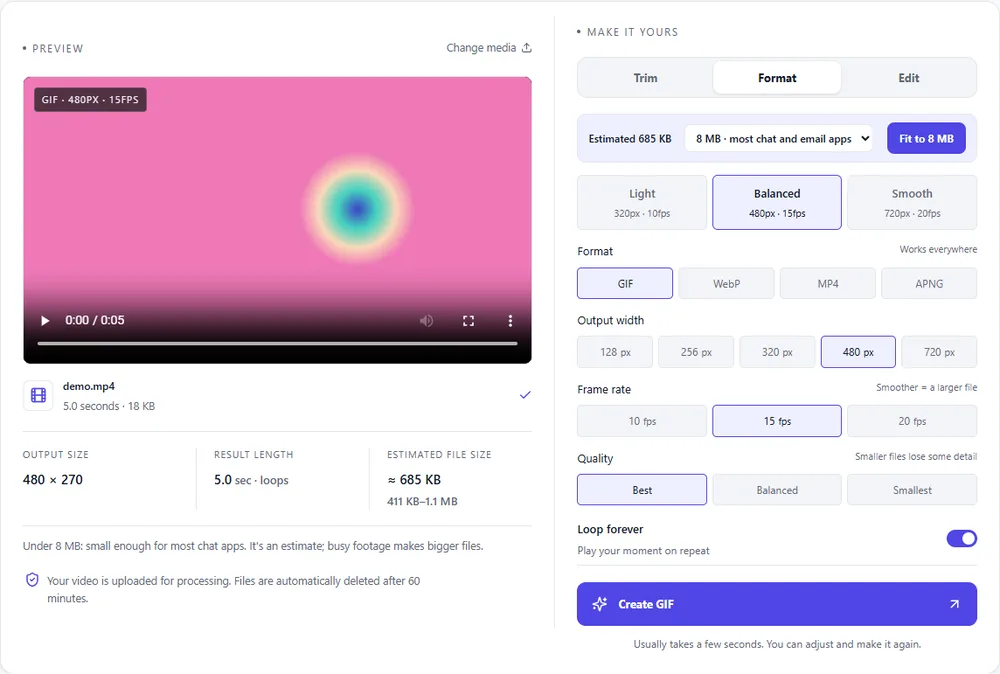
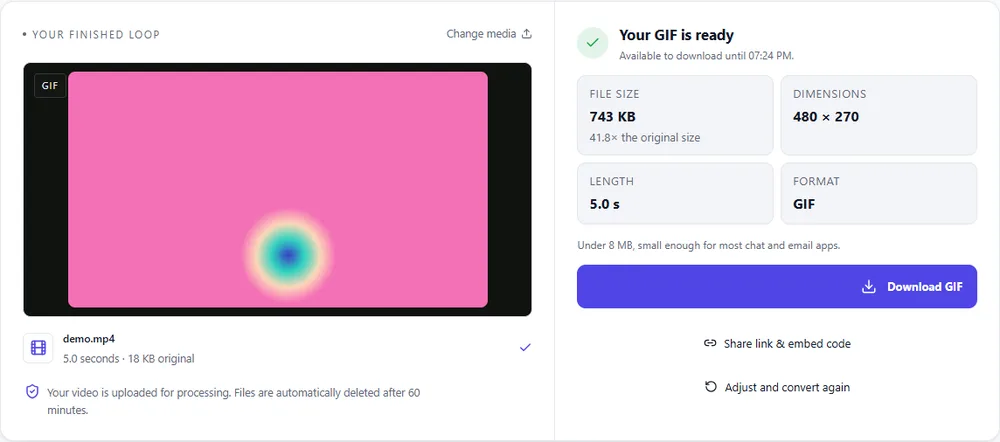
When the goal is a small file, picking the right format matters more than any other setting.
| Format | For this clip | Typical size | Good to know |
|---|---|---|---|
| MP4Suggested | Almost always the smallest. If your app takes video, this is the easy way in. | About 15× smaller | Up to 1080px and 30fps, no loop flag |
| GIF | The hardest one to keep small. Use it only if you have to, and keep the clip short. | Largest | 256 colours, up to 720px and 20fps |
| WebP | A nice middle ground. Full colour, loops like a GIF, and usually much smaller. | About 5× smaller | Full colour, animated, loops |
| APNG | The biggest of the four. Skip it when size matters. | Larger than GIF | Lossless, full colour, loops |
Can’t find yours? The converter explains problems in plain language as they come up.
Make it shorter, lower the width and frame rate, crop it, and set quality to Smallest. Or press Fit to 8 MB and it'll pick the settings for you. The estimate updates after every change.
MP4, usually, then WebP. GIF is the biggest but works everywhere. Use the smallest one that wherever you're posting will accept.
It's based on real conversions and shown as a range, because busy footage always comes out bigger than calm footage. After one export it calibrates to your actual file and gets much closer.
Video files only store what changes between frames. A GIF stores nearly every frame as a full picture. So a GIF several times bigger than its source is completely normal.
Limits vary and change from time to time. Just use the estimate against whatever limit your app has.
Some settings do, like Smallest quality or a lower width. Trimming doesn't cost any quality at all, which is why it's the place to start.
It's free, there's nothing to sign up for, and your files are gone within the hour.