Putting your brand on a demo
A small mark in the corner of a product clip makes it clear where it came from when it gets shared.
Lay your logo over every frame of a GIF or video. Pick where it goes, how big it is and how see-through, and watch it appear on the preview before you make anything.
A logo on a GIF does two jobs. It tells people where the clip came from, and it gives the GIF a little polish when it's shared somewhere you don't control. This tool places a picture over the whole clip, in the same spot on every frame, so it stays put while the picture moves underneath.
Use a PNG with a transparent background if you can. A logo on a white box looks like a white box. JPG and WebP work too, and JPG simply has no transparency. The logo is a still picture, so an animated logo isn't supported, and the file can be up to 5 MB.
Be realistic about what a watermark does. It discourages casual copying and it gives credit, but anyone who wants to can crop it out, particularly from a corner. If protecting the clip really matters, put the logo near the middle at low opacity, and expect that to be a deterrent rather than a lock.
Drop it in or paste it, then trim and crop to the final shape first, so the logo lands where you expect.
Choose your PNG, JPG or WebP picture under Logo or sticker. It appears on the preview straight away.
Pick one of nine spots, then set the size as a share of the width and how solid it is. A corner at 15 to 25 percent usually looks right.
A logo adds a little to the size, so check the estimate, then press Create GIF.
Treat these as a first try, not a rule. The size estimate tells you quickly whether to nudge them up or down.
| If you're making | Try | Why it works |
|---|---|---|
| Brand mark on a product demo | Bottom right · 15% · 80% opacity · 480px | Visible but out of the way. |
| Credit on a clip you made | Bottom left · 12% · 70% opacity | A small, polite credit. |
| Light watermark across a preview | Centre · 35% · 30% opacity | Harder to crop out, and still lets the picture through. |
| A sticker or badge | Top right · 20% · full opacity | A bold stamp, like a new or sale badge. |
A small mark in the corner of a product clip makes it clear where it came from when it gets shared.
A subtle logo travels with a GIF wherever people post it.
A bold stamp, such as new, sale or a mascot, laid over the clip.
It's a JPG or a PNG with a solid background. Export it as a PNG with a transparent background and add it again.
The limit is 5 MB, and the picture must be PNG, JPG or WebP up to 4096 pixels. Resize it first.
A small logo scaled up has few pixels. Use a larger source picture, or make it smaller on the GIF.
That's intended. The logo is added after the rotation, so it always reads the right way up.
Choose one of the nine positions. They sit a few percent in from the edge, the same on the preview and in the result.
These are real screenshots from this site, taken with a demo clip. Your own file will give different sizes, but the controls are exactly these.
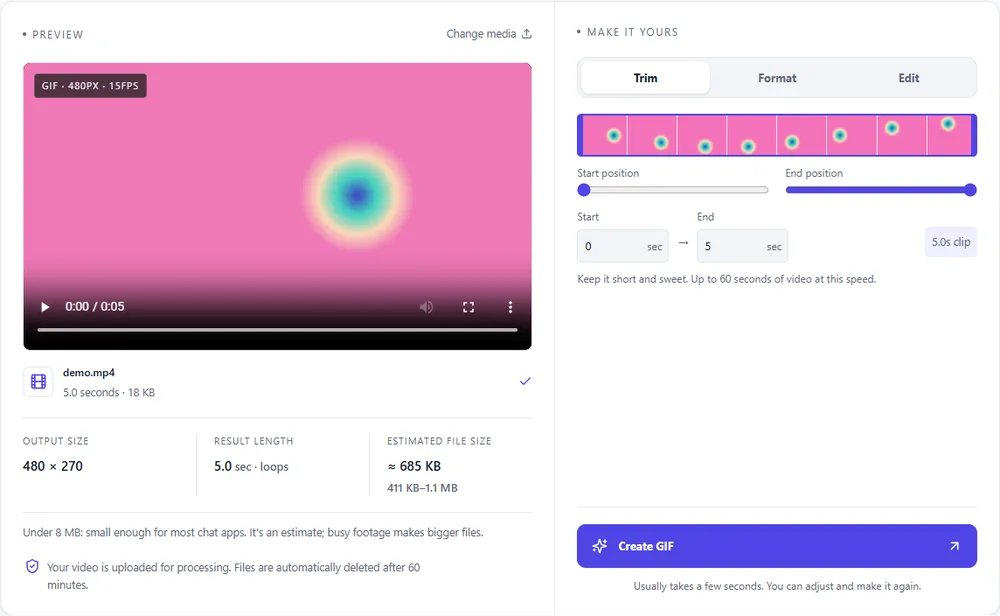
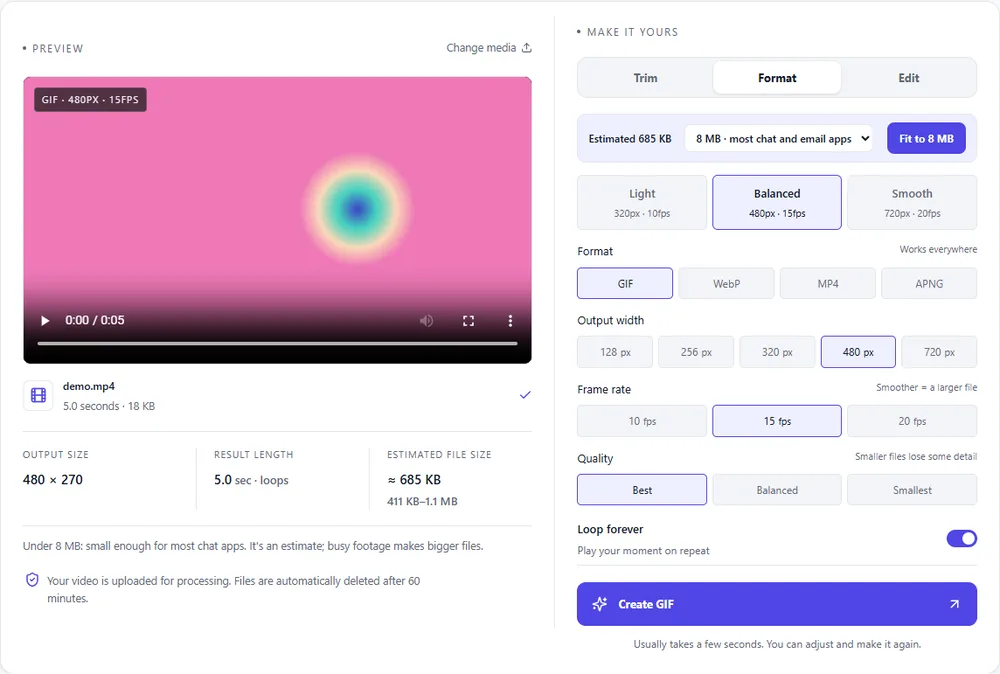
A logo adds a little to the size in every format, but flat artwork compresses better in some than others.
| Format | For this clip | Typical size | Good to know |
|---|---|---|---|
| WebPSuggested | Smaller for the same look, and a transparent logo keeps clean edges. | About 5× smaller | Full colour, animated, loops |
| GIF | Works everywhere, and a flat logo compresses reasonably well. | Largest | 256 colours, up to 720px and 20fps |
| MP4 | The smallest, and fine when it doesn't need to loop as an image. | About 15× smaller | Up to 1080px and 30fps, no loop flag |
| APNG | Lossless and crisp for logos, but heavy. | Larger than GIF | Lossless, full colour, loops |
Can’t find yours? The converter explains problems in plain language as they come up.
Add the GIF, open the Edit tab, choose your logo under Logo or sticker, pick a position, a size and an opacity, and press Create GIF.
A PNG, JPG or WebP up to 5 MB. A PNG with a transparent background looks best.
No. The logo is a still picture that sits in the same place on every frame.
It's uploaded with your clip when you press Create, used to make the file, and deleted with the rest after the GIF is made.
It discourages casual copying and gives credit, but it can be cropped out. A bigger, lower-opacity mark nearer the middle is harder to remove.
Yes. The logo is added the same way to any clip, and you can export GIF, WebP, MP4 or APNG.
It's free, there's nothing to sign up for, and your files are gone within the hour.